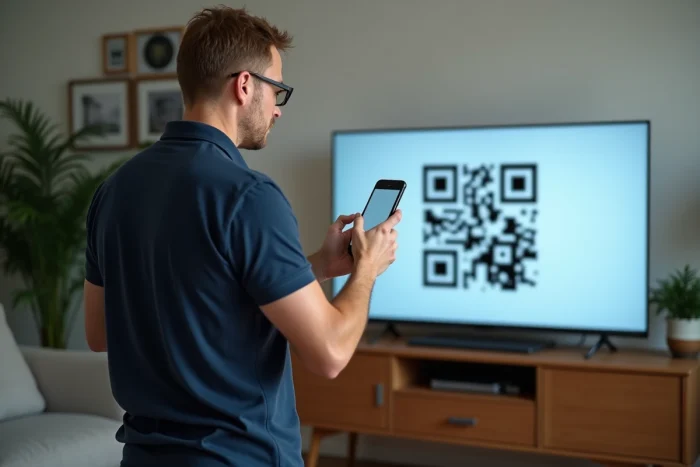
A dedicated button for scanning QR codes has recently appeared on some Smart TV remotes, but in most households, it remains purely theoretical. Yet, QR codes have conquered our digital ecosystems. Using this function on a television, especially under Android, can sometimes feel like a treasure hunt: no universal solution, methods that vary from one brand to another, and an experience that is rarely straightforward without a precise manual. It’s better to know a few tips to avoid frustration during installation or connection.
Why scanning a QR code on your Smart TV makes everything easier
The uses of smart television have disrupted our way of accessing content. Today, the QR code becomes the discreet bridge between the smartphone and the TV: it saves us from tedious entries on the remote, repetitive email inputs, and even the manual creation of accounts. A quick scan and everything activates; we access our app, validate our subscription, or sync a device in seconds. This little coded square, far from being trivial, reinvents connections on the fly and speeds up access to streaming platforms or VOD applications.
Why so much success? Speed, fluidity, security: scanning via smartphone significantly reduces the risk of error and makes the process feel natural. Services are playing the simplicity card: no more digging through menus or memorizing yet another string of characters. The QR code guarantees a connected experience without unnecessary friction.
For anyone looking for how to scan a qr code on the smart tv, the challenge is to respond to the proliferation of these unique codes generated to speed up setup or authentication from the television. Thanks to the mobile camera, the relay happens instantly: we install, connect, and identify ourselves in a flash, with the entire TV and smartphone ecosystem working together to bring a new coherence to our living room usage.
This pixelated square thus plays the role of a reliable link between mobility and the world of television, while ensuring better data protection. As a result, access to our content becomes more flexible, and screen manipulation becomes intuitive, even in the mundane moments of daily life.
On Android: which applications to use to scan the QR code displayed on the TV?
Android dominates most smartphones on the market. Scanning the QR code displayed on the big screen thus becomes child’s play, provided you choose the right tool. For most recent devices, the default camera app automatically detects QR codes: just aim at the code on the Smart TV, wait for the notification, and then tap the screen to access the corresponding service.
Some older models, or those whose camera app does not include this function, require a third-party solution. Several free applications designed for Android exist in the stores. They are quick to install and reliable for this use. Often, they also offer additional options, such as saving scan history, useful for revisiting a link or information displayed temporarily.
Just a few precautions to observe before taking action:
- Make sure in the settings that the QR code reading function is enabled in the camera app.
- If you download a dedicated app, prefer those known for protecting your privacy and not drowning the interface in ads.
The rest is a matter of common sense: ensure that the QR code is clearly visible on the TV screen, that the room lighting is adequate, and keep a steady hand to avoid a laborious scan. By opting for a streamlined tool, you will avoid unpleasant surprises while enjoying quick and reliable detection.

Step by step: scanning the QR code with LetsView on Smart TV
Synchronizing your Smart TV and smartphone becomes child’s play with a screen-sharing app like LetsView. Nothing complex: the principle is based on visualizing then scanning a QR code generated on the television. Naturally, a stable Wi-Fi access is necessary to smooth the data exchange between the mobile device and the TV screen.
First reflex: install LetsView on your mobile from the usual app store. Open the app, and simultaneously launch LetsView from your Smart TV menu. The television then displays a QR code: just take out your phone to intercept it.
Detailed procedure
- In the LetsView app on the phone, locate and tap the “Scanner” icon.
- Aim at the QR code displayed on the TV: within seconds, the connection is made, and communication is established without waiting or extensive configuration.
The automation of recognition avoids any complex input. As soon as the QR code is scanned, the smartphone and television communicate: no need to juggle with endless series of numbers or wait for code validation by email. The experience, immediate and seamless, appeals both in domestic use and in a professional setting.
For anyone looking to streamline their connected uses in front of their screen, the QR code has now become the obvious gateway. No more wasting time, no more lengthy settings: one gesture, and access is assured.
As digital habits evolve, the Smart TV establishes itself as the contact point between all our universes. The QR code, in turn, discreetly installs itself as a true accelerator of simplicity. Who would have imagined, just a few years ago, synchronizing a screen with a simple glance?